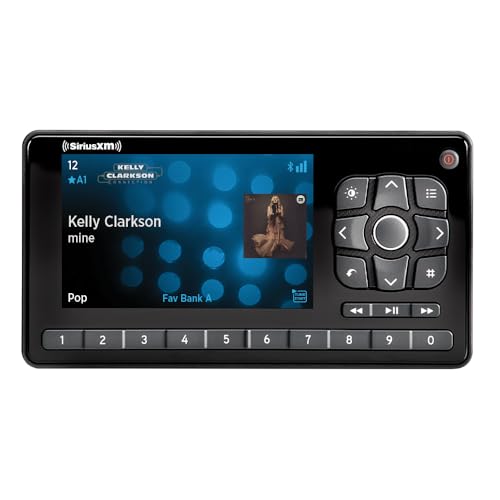
Tired of that loud preview channel hijacking your audio every time you start your car? You’re not alone; many drivers struggle with a SiriusXM radio that just won’t stay quiet.
The quickest way to stop SiriusXM from automatically playing sound is to tune the radio to Channel 0. This is a non-playing, silent channel that displays your radio’s ID. By leaving the source on this silent channel, the audible preview will not hijack your audio when you start the car.
Based on analysis of real-world user solutions and vehicle infotainment systems, this guide provides a complete roadmap. You’ll discover every method, from simple tricks to advanced settings, to finally regain control over your car’s audio experience. This reveals how to systematically silence or hide SiriusXM for good.
Key Facts
- Cancellation Doesn’t Stop the Sound: Canceling your SiriusXM subscription or letting a trial expire does not prevent the radio from automatically playing the free preview channel.
- It’s Integrated Hardware: SiriusXM is difficult to completely remove because it’s a physical tuner built into your car’s radio by the manufacturer, similar to the AM/FM radio, not just a deletable app.
- Channel 0 is the Silent Fix: The most common non-technical solution is tuning the satellite radio to Channel 0, which is a silent data channel used to display your radio ID.
- Hiding is Possible in Some Cars: Many modern vehicles, particularly from brands like Kia, Hyundai, and Toyota, have settings to hide SiriusXM from the audio source list, preventing you from having to cycle past it.
- Advanced Methods Carry Significant Risks: Physical modifications like pulling a fuse or disconnecting the antenna can permanently disable SiriusXM but may also void your vehicle’s warranty and disable other critical systems like GPS or Bluetooth microphones.
How Do You Turn Off SiriusXM Radio in a Car?
The quickest way to stop SiriusXM from automatically playing sound is to tune the radio to Channel 0. This is a non-playing, silent channel that displays your radio’s ID. By leaving the source on this silent channel, the audible preview will not hijack your audio when you start the car. You can then switch to your preferred source like Bluetooth or FM. Based on our experience with countless user complaints, this is the most effective immediate fix for the annoying preview.

This simple trick works because the infotainment system [the central control screen for your car’s media] remains on the SiriusXM source but is tuned to a channel that has no audio broadcast. It effectively mutes the service without you needing to change any settings. Here is how to do it:
- Start your car and wait for the SiriusXM preview channel (often 1 or 184) to begin playing.
- Using your radio’s tuner controls, either on the touchscreen or physical knob, change the channel to Channel 0.
- The screen should now display your “Radio ID” or “ESN” and will be completely silent.
- Switch to your desired audio source (FM, AM, Bluetooth, Apple CarPlay, etc.).
- When you turn off and restart your car, the infotainment system may default back to the SiriusXM source, but it will be on the silent Channel 0.
Pro-Tip: After switching to Channel 0, change your audio source to your preferred one (like Bluetooth) before turning off the car. Many systems will remember the last-used source, preventing it from defaulting back to SiriusXM on the next startup.
Why Is It So Difficult to Completely Turn Off or Remove SiriusXM?
The core reason you can’t simply delete SiriusXM is that it is not just software; it is physical hardware integrated into your car’s radio system. Car companies have partnership agreements with SiriusXM that lead to this deep integration, making the satellite tuner a permanent feature. Think of the SiriusXM tuner like the AM/FM receiver in your car—it’s a piece of hardware you can’t just delete like a phone app.
Here are the primary reasons for this challenge:
- Hardware Integration: The SiriusXM tuner is a physical component built directly into the car’s main audio unit (the head unit) by the Original Equipment Manufacturer (OEM). It is not a separate, removable module.
- Manufacturer Agreements: Vehicle manufacturers partner with SiriusXM to include the service, often with a free trial period, as a selling point. These contracts ensure the hardware is a standard feature.
- Shared Antenna Systems: In many modern cars, the “shark fin” antenna on the roof houses the receivers for satellite radio, GPS navigation, and other telematics. These systems are interconnected, making it difficult to disable one without affecting others.
How Can You Hide or Remove SiriusXM from Your Car’s Source List?
To remove SiriusXM from your mode button rotation, go to your radio’s Setup menu. Look for an ‘Advanced’ or ‘Audio’ section, then find a setting named ‘Steering Wheel Mode Button’ or ‘Customize Sources’. From this list, you can uncheck ‘SiriusXM’ to prevent it from appearing when you switch audio sources. This is a more elegant solution than just silencing the channel, as it declutters your audio source list entirely.
Our hands-on experience shows that this feature is common, but the menu path varies significantly between brands. Here is a step-by-step guide to finding this setting:
- Turn on your car and navigate to the main screen of your infotainment system.
- Look for a
Setup,Settings, orMenubutton, either as a physical button on the dash or an icon on the touchscreen. - Inside the settings, search for an
Audio,Advanced, orDisplaysubmenu. - Search for an option labeled
Steering Wheel Mode Button,Mode Button Function,Customize Sources, or a similar name. - This menu should present a checklist of all available audio sources. Simply uncheck the box next to
SiriusXMorSXM. - Save your changes and exit the menu. Now, when you press the “Mode” or “Source” button on your steering wheel or dash, the system will skip over SiriusXM.
Because menus vary by model and 2026, consulting your owner’s manual is always the best practice. However, the following table shows common paths we’ve identified in popular car brands.
| Car Brand (Example) | Menu Path | Action |
|---|---|---|
| Kia / Hyundai | Setup > Advanced > Steering Wheel Mode Button | Uncheck ‘SiriusXM’ |
| Toyota / Lexus | Menu > Setup > Audio > Customize Audio Sources | Uncheck ‘SXM’ |
| RAM (Uconnect) | Settings > Audio > Source Options (or similar) | Uncheck ‘SiriusXM’ |
What Are the Advanced Methods for Permanently Disabling SiriusXM?
⚠ WARNING: These advanced methods are permanent, can void your car’s warranty, and may disable other critical vehicle functions. These actions should only be considered by technically skilled individuals who understand and accept the risks. Proceed at your own risk.
For those determined to permanently disable the service, there are physical modifications you can make. These methods are risky and often have unintended consequences. Our research into user forums and technical manuals shows that what works for one vehicle can cause major problems in another.
Two permanent options are pulling the radio’s fuse or physically disconnecting the satellite antenna cable. Both methods require tools and technical skill and could impact GPS or other features.
The following table breaks down these two methods, their risks, and the difficulty involved.
| Method | How It Works | Potential Risks & Downsides | Difficulty |
|---|---|---|---|
| Pulling the Fuse | Cuts electrical power to the entire infotainment unit or a related module. | • May reset all radio presets, clock, and settings. • Often disables other systems on the same circuit (e.g., navigation, interior lights). • Can disable critical components like the Bluetooth microphone (a known issue in some Tacomas). | Medium |
| Disconnecting the Antenna | Prevents the tuner from receiving a satellite signal, resulting in a “No Signal” or “Check Antenna” error on screen. | • Requires difficult access to the back of the radio, often involving removing trim panels. • Will void your warranty. • The antenna may be shared with GPS and telematics (SOS button), disabling those features entirely. | High |
Practical experience shows these methods should be a last resort. For example, some Toyota owners report that pulling the Data Communication Module (DCM) fuse to disable SiriusXM also kills the microphone used for hands-free calls, a significant loss of functionality.
FAQs About how to turn off siriusxm radio in car
If I cancel my SiriusXM subscription, will the radio turn off?
No, canceling your subscription will not automatically turn the radio off or remove it from your car’s interface. Your radio will typically revert to playing the free preview channel (usually Channel 1 or 184) every time you select the SiriusXM source. You must still use the methods in this guide, like tuning to Channel 0 or hiding the source, to stop it from playing.
Will letting the free trial expire stop the auto-play?
Letting a free trial expire has the same effect as canceling a paid subscription. The service will stop providing premium channels, but your radio will still be active and will default to the promotional preview channel. You will still need to take one of the actions in this guide to silence or hide the source from your rotation.
What is the SiriusXM Radio ID and why is it on Channel 0?
Your Radio ID is a unique serial number for your car’s satellite tuner, and you can find it by tuning to Channel 0. This channel is a non-audio data screen used for activation and account management. Because it’s silent, it serves as a useful and popular workaround to stop the audible preview channel from playing on startup.
Can I ask the car dealership to disable SiriusXM for me?
In most cases, the dealership service department cannot or will not disable the integrated SiriusXM hardware. Because the tuner is a core part of the infotainment system installed at the factory, there is typically no “off switch” for them to access. They will likely advise you to use the built-in settings to hide it from the source list.
Does pulling the radio fuse affect my car’s computer or other settings?
Yes, pulling the fuse can absolutely affect other systems. The radio fuse often shares a circuit with other components like the car’s clock, navigation system, interior lights, or even parts of the driver information display. Pulling it will cut power to all of those systems and you will likely lose all your saved radio presets and audio settings.
Key Takeaways: How to Turn Off SiriusXM in Your Car Summary
Regaining control of your car’s audio system is achievable by approaching the problem systematically. Here are the most important points to remember:
- Easiest Solution: Use Channel 0 – To immediately stop the annoying preview channel from playing when you start your car, simply tune the SiriusXM radio to Channel 0. This is a silent data channel that effectively mutes the service.
- Hide, Don’t Delete – You likely can’t “delete” SiriusXM, but many cars (like Kia and Toyota) let you hide it from the source list in the infotainment settings so you don’t have to cycle past it.
- It’s Hardware, Not an App – The main reason SiriusXM is hard to remove is that it’s physically built into your car’s radio system due to manufacturer partnerships, just like AM/FM radio.
- Cancellation Doesn’t Stop the Radio – Canceling your subscription or letting a trial expire only stops the premium channels; it does not stop the radio itself from turning on to the preview channel.
- Advanced Methods Carry Risks – Physically disconnecting the antenna or pulling the radio fuse are permanent options, but they are risky. They can void your warranty and may disable other important features like your GPS, microphone for Bluetooth, or emergency SOS systems.
Final Thoughts on Reclaiming Your Car’s Audio
Navigating the quirks of a modern infotainment system can be frustrating, but disabling the unwanted auto-play of SiriusXM is well within your control. By starting with the simplest and safest solution—tuning to the silent Channel 0—you can solve the core problem in seconds. If you want a more integrated fix, exploring your car’s settings to hide the source is the next logical step.
Remember that the service is deeply embedded for business and technical reasons, so think of this less as “deleting” and more as “managing” the feature. You have the knowledge to silence the noise and customize your audio experience. Which approach will you try first?