
Tired of fumbling with your iPhone while driving? Figuring out how to set up CarPlay can seem complicated, with questions about compatibility, connection types, and the right settings. You just want a simple, reliable way to use your maps, music, and messages safely on your car’s screen, but getting it to work for the first time can be a frustrating hurdle.
To set up Apple CarPlay, you must first ensure your iPhone (5 or newer on iOS 13+) and vehicle (most 2016+ models) are compatible, then enable Siri on your phone. Connect your iPhone to the car’s designated USB port with an Apple cable for a wired setup, or for wireless, use your car’s pairing mode and select your vehicle in your iPhone’s CarPlay settings.
Leveraging extensive analysis of user guides and established setup patterns, this definitive guide provides the complete, step-by-step instructions you need. We’ll walk you through everything from the initial compatibility check to customizing your screen and troubleshooting the most common connection issues. This guide unpacks the proven process to help you effectively set up CarPlay and start enjoying a smarter, safer drive today.
Key Facts
- Broad Compatibility: Apple CarPlay works with any iPhone 5 or newer model, provided it’s running iOS 13 or a later version.
- Widespread Vehicle Support: The vast majority of cars manufactured from 2016 onwards come with factory-installed CarPlay support, a feature confirmed by numerous automotive brands like Ford, Toyota, and BMW.
- Siri is Essential: CarPlay is fundamentally dependent on Siri for its hands-free functionality; evidence from all setup guides confirms that Siri must be enabled on your iPhone for CarPlay to work.
- No App Download Required: CarPlay is not an app you install. It’s a core feature built directly into the iPhone’s operating system, activating automatically upon a successful connection.
- Aftermarket Solutions Exist: For older cars without built-in support, it’s possible to add the feature by installing a third-party aftermarket infotainment system that is compatible with Apple CarPlay.
First, What Is Apple CarPlay and Why Use It?
Apple CarPlay integrates your iPhone with your car’s screen, providing a safer and more convenient way to use key apps like Maps, Music, and Messages while you drive. Think of it as putting a simplified, driver-friendly version of your iPhone’s most important functions right onto your vehicle’s built-in display. Instead of looking down at your phone, you can see and control everything on a larger, familiar screen.
The primary goal is to minimize distractions and let you stay focused on the road. By leveraging your car’s existing controls—like the touchscreen, knobs, or buttons on your steering wheel—and the power of Siri voice commands, CarPlay makes your driving experience smarter and safer.
- Safer Navigation: Get turn-by-turn directions from apps like Apple Maps, Google Maps, or Waze displayed clearly on your car’s screen, complete with real-time traffic updates.
- Hands-Free Communication: Make calls, listen to voicemails, and have your text messages read aloud to you by Siri. You can even dictate replies without ever taking your hands off the wheel.
- Seamless Entertainment: Easily access your entire music library from Apple Music or Spotify, listen to podcasts, or tune into audiobooks. For long trips, SharePlay even lets passengers add to the music queue from their own iPhones.
- Convenient Control: Use the CarPlay dashboard to manage calendar events or even control HomeKit accessories, like opening your garage door as you approach your house.
Ready to make your drives safer and more connected? Let’s get you set up.
Step 1: Confirm Your iPhone and Vehicle Are CarPlay Compatible
Ensure you have an iPhone 5 or newer (running iOS 13+) and a vehicle from 2016 or later; check your car’s manual or infotainment screen for the CarPlay logo. Before you plug anything in or change any settings, this is the most critical first step. Without compatible hardware, the setup process won’t work.


You can quickly verify both requirements using the simple checks below. Taking a moment to confirm compatibility now will save you from potential frustration later on.
| Requirement | Details & How to Check |
|---|---|
| Compatible iPhone Model | You need an iPhone 5 or a more recent model. This includes all standard models from the 5 up to the latest iPhone 16 Pro Max, as well as the iPhone SE (2nd and 3rd generations). |
| Required iOS Version | Your iPhone must be running iOS 13 or newer to access all modern CarPlay features. To check, go to Settings > General > About on your iPhone to see your “iOS Version.” As of July 14, 2026, iOS 18 is the latest version. |
| Compatible Vehicle | Most major car manufacturers started including CarPlay in models from 2016 onwards. The quickest way to check is to look for the CarPlay logo on your car’s infotainment screen, in the menus, or printed near a USB port. You can also consult your owner’s manual or the manufacturer’s website. |
Pro Tip: The quickest way to check your car’s compatibility is to look for a CarPlay logo on the USB port or within the infotainment menu.
A. Checking iPhone Compatibility
CarPlay requires an iPhone 5 or a later model, including the iPhone SE (2nd/3rd gen) and models up to the iPhone 16 Pro Max, running iOS 13 or newer. This wide range of device support means that if you’ve purchased an iPhone in the last several years, it’s almost certainly compatible.
Here are the specific requirements:
- Compatible Models: iPhone 5 and all later models. This includes the entire range of standard iPhones, Plus models, Pro models, Pro Max models, Mini models, and the iPhone XR, XS, and SE (2nd and 3rd generation).
- Required iOS: iOS 13 or a more recent version is necessary for the best experience and access to the latest features, such as the dashboard view and wallpaper customization. Always keep your iPhone updated to the latest available iOS for optimal performance and security.
B. Verifying Vehicle Compatibility
Check your car’s manual, manufacturer website, or infotainment menu for CarPlay support. Most major brands like Ford, Toyota, Honda, and BMW have offered it since 2016. While CarPlay has become a standard feature, it’s always best to confirm your specific model has it.
Here’s how you can quickly verify:
- Check the Owner’s Manual: Your car’s manual is the most definitive source and will have a section on the infotainment system that mentions Apple CarPlay if it’s supported.
- Look at the Infotainment System: Turn on your car and browse the main menu on the screen. Look for an icon labeled “Apple CarPlay” or sometimes “PROJECTION.”
- Inspect the USB Ports: Often, the USB port designated for CarPlay will have a special icon next to it—either the official CarPlay logo or a generic smartphone symbol. This port is usually located in the center console or near the bottom of the dashboard.
- Consult the Manufacturer: A quick search for “[Your Car Brand] [Your Model Year] Apple CarPlay” will usually lead you to the manufacturer’s official page listing compatible models.
Quick Fact: Most car models manufactured from 2016 onwards come with CarPlay built-in. Well-known compatible brands include Audi, BMW, Chevrolet, Chrysler, Dodge, Ford, Honda, Jeep, Mercedes-Benz, Toyota, and Volkswagen, among many others.
Step 2: Prepare Your iPhone and Car for Connection
Before connecting, start your car, enable Siri in your iPhone’s Settings, turn on Wi-Fi and Bluetooth, and ensure CarPlay is not restricted under Screen Time settings. Taking a moment to configure these settings is one of the most important parts of learning how to set up CarPlay. It prevents the most common connection failures before they happen.
Don’t skip these! Taking 30 seconds to check these settings now can save you a headache later.
- Start Your Vehicle: Make sure your car is running. For safety, it’s best to perform the initial setup while the car is parked.
- Enable Siri: CarPlay relies on Siri for hands-free commands, so it must be turned on. Go to Settings > Siri & Search on your iPhone. Ensure that either “Press Side Button for Siri” (on newer iPhones) or “Press Home for Siri” (on older iPhones) is enabled. For a fully hands-free experience, also turn on “Listen for ‘Hey Siri'”.
- Turn On Wi-Fi and Bluetooth: Even if you plan to use a wired connection, it’s a good practice to have these on. For a wireless CarPlay setup, they are mandatory. You can turn them on from your iPhone’s Control Center or in the Settings app.
- Check Screen Time Restrictions: In some cases, parental controls or Screen Time settings can prevent CarPlay from running. To check this, go to Settings > Screen Time > Content & Privacy Restrictions. If it’s on, tap on Allowed Apps and make sure the toggle next to “CarPlay” is green.
Step 3: How to Set Up CarPlay (Wired & Wireless Methods)
To set up CarPlay, either connect your iPhone to the car’s marked USB port with an Apple cable (Wired) or pair it via Bluetooth/Wi-Fi by holding the steering wheel’s voice command button and selecting your car in your iPhone’s CarPlay settings (Wireless). Your car will support one or both of these methods. The wired connection is the most common, while wireless offers added convenience.
Follow the specific steps below for the type of connection your vehicle supports. If you’re unsure, starting with the wired method is a safe bet, as many cars that support wireless will offer to set it up after you connect with a cable for the first time.
A. Connecting with a USB Cable (Wired Setup)
Plug your iPhone into the car’s designated USB port using an official Apple cable. CarPlay should launch automatically; if not, tap the CarPlay or “PROJECTION” icon on the screen and accept any iPhone prompts. This method is the most straightforward and reliable way to get connected.
- Locate the Port: Find the correct USB port in your car. As mentioned, it’s often in the center console or dashboard and may be labeled with a CarPlay or smartphone icon.
- Use an Apple Cable: For the most stable connection, use a genuine Apple Lightning to USB cable or an MFi-certified (Made for iPhone) cable. Some vehicles and newer iPhones may require a USB-C cable or adapter.
- Launch & Permit: Plug your iPhone into the port. In most cars, the CarPlay interface will appear on the screen automatically. If it doesn’t, select the CarPlay logo from your car’s main menu. Your iPhone will display a prompt asking you to allow CarPlay to connect while your phone is locked. Tap “Allow.”
B. Connecting via Bluetooth & Wi-Fi (Wireless Setup)
Press and hold your steering wheel’s voice command button to start pairing. On your iPhone, go to Settings > General > CarPlay and select your vehicle from the list to complete the wireless setup. Wireless CarPlay offers the fantastic convenience of automatically connecting as soon as you get in your car, with no cables required.
- Start Pairing Mode: With your car’s infotainment system turned on, press and hold the voice command button on your steering wheel. This will put your car’s system into wireless or Bluetooth discovery mode.
- Navigate on Your iPhone: While holding the button, unlock your iPhone and go to Settings > General > CarPlay.
- Select Your Vehicle: Tap on “Available Cars,” and you should see your vehicle’s name appear in the list. Tap on it.
- Confirm the Connection: Your phone and car will now handle the rest of the pairing process. You may need to confirm a PIN on both screens to complete the connection.
- Enable Auto-Join: To ensure it connects automatically in the future, go to Settings > Wi-Fi on your iPhone, tap the CarPlay network, and make sure “Auto-Join” is enabled.
Pro Tip: Once paired, make sure ‘Auto-Join’ is enabled on your iPhone’s Wi-Fi settings for the CarPlay network to ensure it connects automatically next time.
Step 4: Customize Your CarPlay Experience
Personalize CarPlay by going to Settings > General > CarPlay on your iPhone. Select your car, tap Customize, and you can add, remove, and rearrange apps. You can also change the wallpaper and set Dark Mode directly from the CarPlay settings on your car’s screen. Once you have the basic setup working, you can tailor the interface to perfectly suit your needs and preferences.

Make CarPlay truly yours. Do you prefer your navigation app or your music app to be first on the screen? Here’s how to change it.
- Arrange Your Apps: On your iPhone, go to Settings > General > CarPlay and select your car. Tap Customize. Here you’ll see a list of all compatible apps. You can tap the red minus button to remove an app from your main screen or tap the green plus button to add one. To reorder them, simply press and drag the apps into your preferred sequence. Industry analysis often indicates that only CarPlay-supported apps will appear in this menu, so you won’t see your entire phone’s app list here.
- Change the Wallpaper: While CarPlay is active on your car’s screen, navigate to the CarPlay Settings app. Select Wallpaper and choose from the available options to give your dashboard a fresh look.
- Enable Dark Mode: In the same CarPlay Settings app on your car’s screen, you can set the appearance. You can have it switch between Light and Dark mode automatically with your headlights, or you can choose “Always Dark Mode” for a consistent look that’s easier on the eyes at night.
- Siri Suggestions & Announcements: In your iPhone’s Settings > Siri & Search menu, you can customize how Siri behaves in CarPlay, including enabling “Announce Messages” so Siri will read incoming texts to you automatically.
Step 5: Troubleshooting Common CarPlay Connection Issues
If CarPlay isn’t working, first restart your iPhone and car. Then, check your USB cable, ensure iOS is updated, and try re-pairing the connection. As a final step, use the “Forget This Car” option in your iPhone’s CarPlay settings and set it up again. Even with a perfect setup, you might occasionally run into a glitch. A practical approach frequently seen to yield results involves working through a logical sequence of simple fixes.
Feeling frustrated? Start with these simple fixes first—they solve the problem more often than you’d think!
Initial Connection Issues
- Restart Everything: This is the oldest trick in the tech book for a reason. Turn your car off and on again. At the same time, perform a full restart of your iPhone.
- Check Your Cable: For wired connections, this is the most common culprit. A faulty or non-certified cable can cause intermittent dropouts or prevent connection entirely. Try a different, high-quality Apple or MFi-certified cable.
- Verify Wireless Settings: For wireless CarPlay, double-check that both Wi-Fi and Bluetooth are enabled on your iPhone.
- Update Your iPhone: Make sure your iPhone is running the latest version of iOS. Go to Settings > General > Software Update to check.
- Re-Pair the Connection: The connection profile may have become corrupted. On your iPhone, go to Settings > General > CarPlay, select your car, and tap “Forget This Car.” Then, go through the setup process again from the beginning.
Functionality & App Issues
- Check Volume Levels: If you don’t hear any audio, check the volume on both your iPhone and your car stereo.
- Ensure App Compatibility: If a specific app isn’t showing up, confirm it’s installed on your iPhone and is designed to be compatible with CarPlay.
- Reinstall a Problematic App: If a single app is crashing or misbehaving, try deleting it from your iPhone and reinstalling it from the App Store.
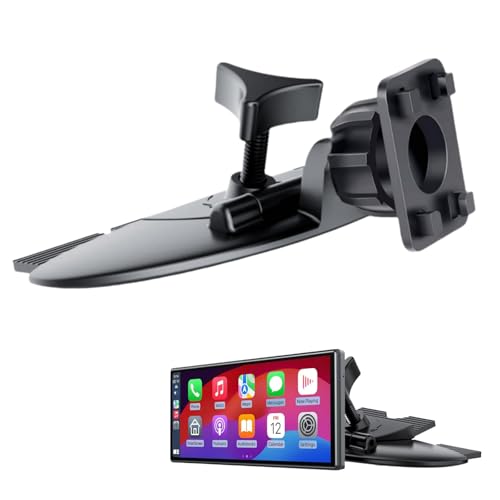
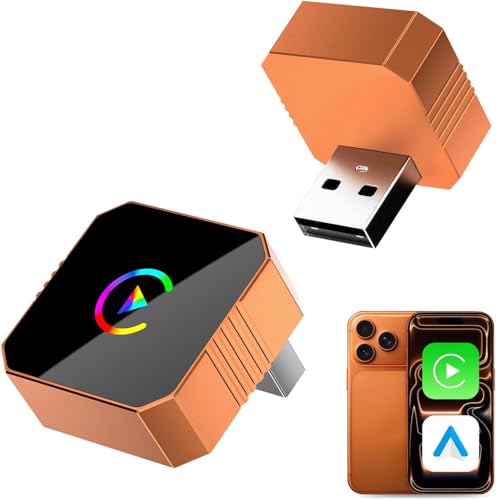
To further simplify your setup and ensure a seamless experience, consider getting some dedicated accessories.



FAQs About Setting Up Apple CarPlay
How do I activate CarPlay for the first time?
You activate CarPlay by ensuring Siri is on, then connecting your iPhone to your car via a USB cable or wireless pairing. There is no separate activation switch; the connection process itself enables it. Activation begins by ensuring Siri is on, as CarPlay cannot function without it. Once you physically connect your phone with a cable or pair it wirelessly, the system automatically detects your iPhone and launches the CarPlay interface on your car’s screen.
Why is my Apple CarPlay not connecting?
Common reasons include an outdated iOS, a faulty USB cable, Siri being turned off, Wi-Fi or Bluetooth being disabled (for wireless), or a simple glitch requiring a restart of your phone and car. These are the most frequent culprits:
- Siri is disabled in your iPhone’s settings.
- Your USB cable is damaged or not Apple-certified.
- Your iPhone’s iOS is out of date.
- For wireless connections, Bluetooth or Wi-Fi is turned off.
- A temporary software glitch in the car’s infotainment system or the iPhone.
Do I need to download an Apple CarPlay app?
No, you do not need to download a separate app. Apple CarPlay is a feature built directly into your iPhone’s operating system (iOS). It is not an application you can find on the App Store. The functionality exists natively on your phone and activates automatically when it detects a compatible car, projecting a driver-safe interface onto the vehicle’s display.
How do I add or install Apple CarPlay to an older car?
To get CarPlay in an older car that doesn’t support it, you must install a third-party aftermarket infotainment system (head unit) that is compatible with Apple CarPlay. This guide covers the setup for vehicles where CarPlay is already built-in. To add CarPlay to an older, unsupported vehicle, you would need to purchase and professionally install an aftermarket stereo receiver or head unit from brands that support the feature. This involves replacing your car’s existing radio with a new one.
A Final Word on Your New CarPlay Setup
You’ve now walked through the entire process of how to set up CarPlay, from the first compatibility check to fine-tuning your app layout and fixing common issues. By following these proven, step-by-step instructions, you’ve transformed your vehicle’s infotainment system into a powerful, smart, and safe extension of your iPhone. The confusion is gone, replaced by the convenience of having your essential apps right at your fingertips, controlled by your voice or a simple touch.
Remember the most critical takeaways for a flawless experience:
- Compatibility is Key: Always start by confirming your iPhone (5+ on iOS 13+) and your vehicle (most 2016+) are a match.
- Siri is Mandatory: CarPlay simply will not work without Siri enabled on your iPhone.
- Trust Your Cable: For wired connections, a high-quality Apple or MFi-certified cable prevents a majority of connection problems.
Now that you’re connected, enjoy a smarter, safer, and more seamless drive
Last update on 2026-03-22 / Affiliate links / Images from Amazon Product Advertising API


